Explore with AI
Standard Operating Procedure: Using a Shared Google Calendar
Purpose
A shared Google Calendar allows visibility of events to all members with access, even those not directly invited. This ensures team members are aware of events and can potentially join, fostering collaboration and transparency.
Scope
This SOP outlines the steps to create an event on a shared Google Calendar, invite participants, and protect their privacy by hiding email addresses.
Responsibilities
- Calendar Admins: Ensure the shared calendar is accessible to relevant team members.
- Users: Follow this SOP to add events correctly and maintain privacy settings.
Procedure
Step 1: Adding an Event to the Shared Calendar
- Open Google Calendar in your browser.
- Click the + Create button or click on the desired date/time slot.
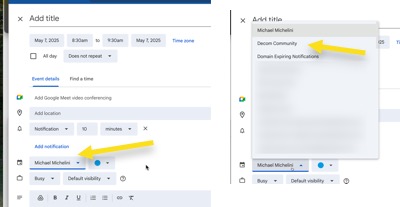
- In the event creation window, click the calendar dropdown menu (default is your personal calendar).
- Select the shared calendar from the list to ensure the event is visible to all members with access.
Step 2: Inviting Participants
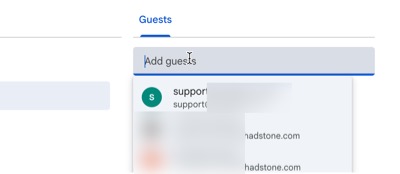
- In the event details, locate the Add guests field.
- Enter the email addresses of the individuals you wish to invite to the event.
- Press Enter after each email to add them as guests.
Step 3: Protecting Privacy by Hiding Email Addresses
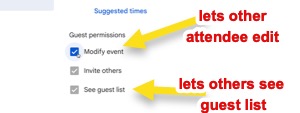
- In the event details, click on the Guests section to expand guest options.
- Check the box labeled Do not show guest list to guests (or similar, depending on Google Calendar version) to hide email addresses from other invitees.
- Click Save to create the event and send invitations.
Notes
- Ensure you have permission to add events to the shared calendar.
- Verify the shared calendar is selected before saving to avoid posting to your personal calendar.
- Hiding guest email addresses is critical for privacy, especially in large or external groups.
References
Google Calendar Help: https://support.google.com/calendar
Comments
Approved comments appear below. Log in once with GFAVIP — it applies across the whole site. GFAVIP login
View comments archive